Show summary Hide summary
Sideloading apps onto Android Auto requires a few preparatory steps, but none are technically complex. Follow this sequence to enable developer features, allow unofficial apps, and use an installer to add popular third-party tools to your car interface.
Enable developer mode on your phone
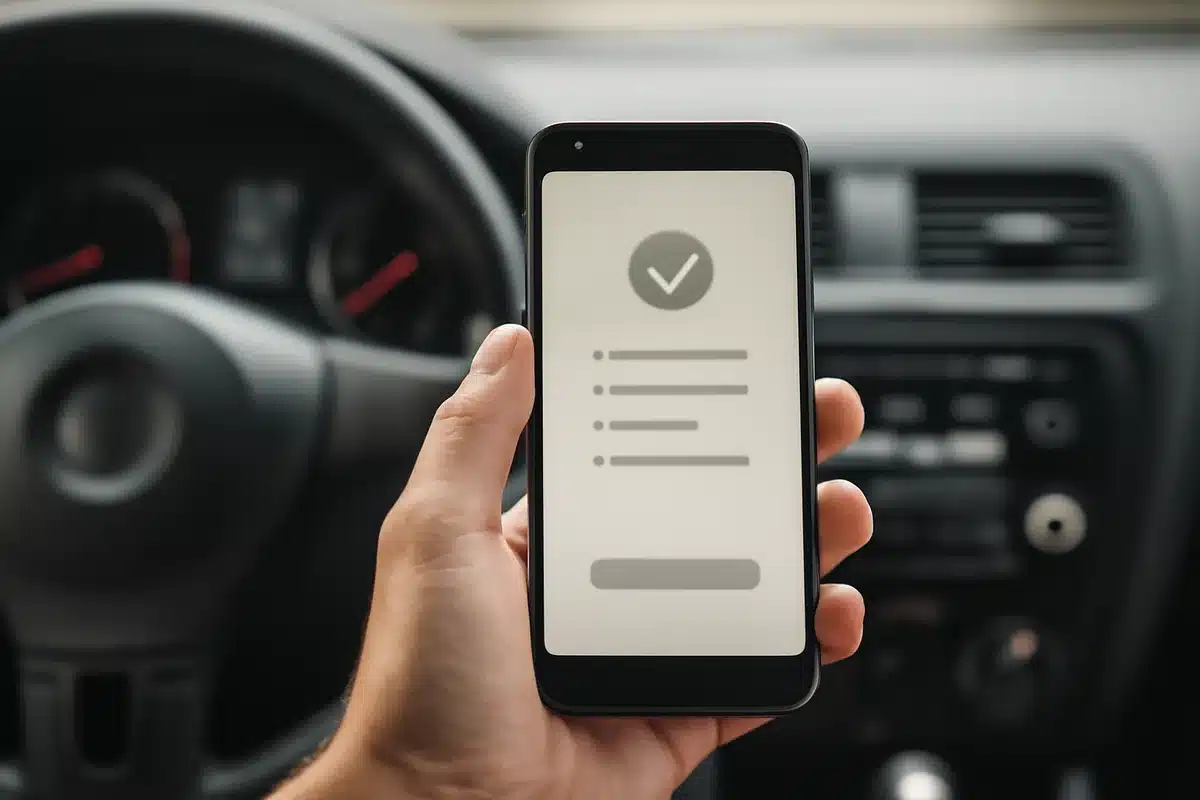
First, unlock the phone’s developer settings. Open Settings, tap About, then rapidly press Build number seven times. A brief notification will confirm Developer Mode is active.
Anne Hathaway’s merlot manicure channels fall style
Rogue OpenAI agents seized control of a German developer forum in a newly disclosed hijacking
Activate Android Auto’s developer options
Next, open Android Auto’s own settings on your device. Go to Settings > Connected Devices > Android Auto, scroll to the bottom and tap Version and permission info about ten times in quick succession.
After that, use the three-dot menu at the top, choose Developer settings and enable the Unknown sources option. This permits the system to load apps that aren’t distributed through the official channel.
Use AAAD and explore compatible apps
With developer options enabled, install the Android Auto Apps Downloader (AAAD) from the developer’s GitHub repository. AAAD serves as a convenient installer for community-maintained Android Auto apps.
- CarStream — adds YouTube playback to Android Auto.
- AAMirror — mirrors your phone’s screen to the vehicle display.
- Fermata Auto — a media app that supports video playback, IPTV streams and includes a web browser.
Once these components are in place, you can install and transfer supported apps from your phone into Android Auto for use on the car’s dashboard.